

-
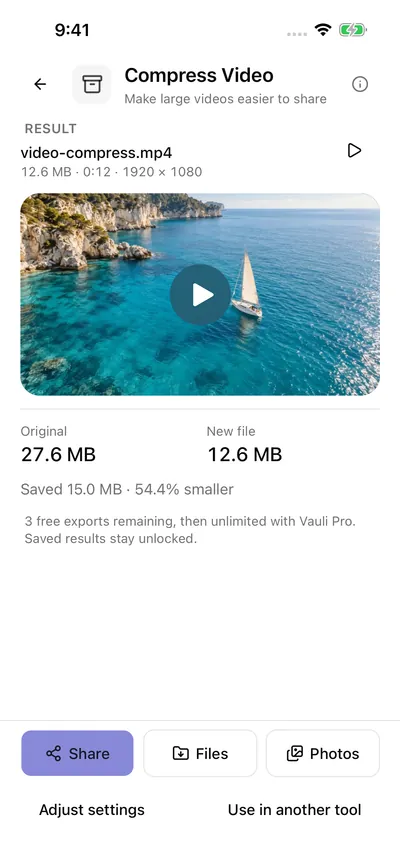
Compress Video Make large videos easier to share
-
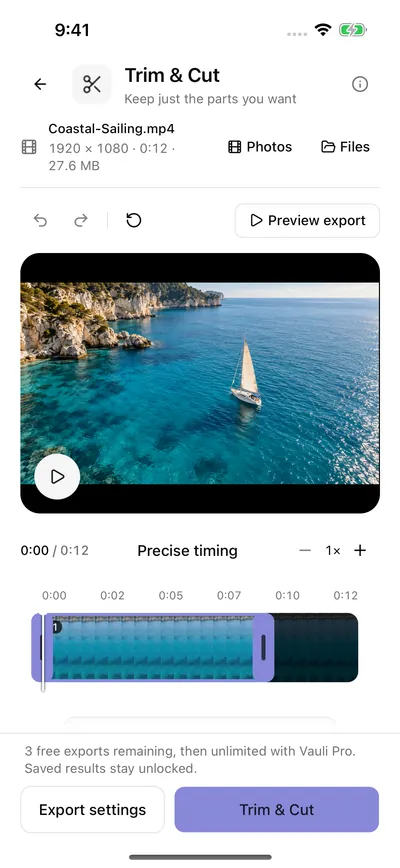
Trim & Cut Keep just the parts you want
-
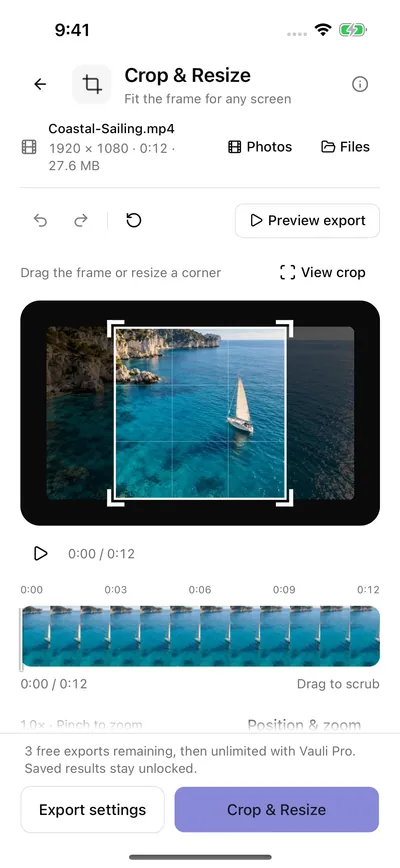
Crop & Resize Fit the frame for any screen


Screens from Vauli 1.0.8, the next update, on an iPhone 16 simulator (iOS 26), 19 October 2026. You see the light or dark version to match your device. Labels may differ slightly in the App Store version, 1.0.7. The clip is Coastal-Sailing.mp4: 1920 × 1080, 12 seconds, 27.6 MB.
20 tools, one for each job
Here they are as the app lists them, with the short line it shows under each one.
Edit
- Trim & CutKeep just the parts you want
- Crop & ResizeFit the frame for any screen
- Merge VideosJoin your clips in the right order
- Change SpeedSet the pace
- Split VideoMake a separate clip
- Loop VideoRepeat the moment
- Reverse VideoRun it in reverse
- Freeze FramePause on a moment
Enhance
- Blur & PixelateCover private details
- Add Text / LogoLabel your video
- Adjust VideoPolish the picture
Audio
- Mute VideoKeep the picture, remove the sound
- Extract AudioSave just the soundtrack
- Replace AudioChoose the soundtrack
- Clean AudioReduce background noise in speech (a simple filter)
Formats
- Compress VideoMake large videos easier to share
- Video to GIFMake a moment loop
- Save FrameKeep one perfect moment
- Convert VideoImprove compatibility
Privacy
- Metadata CleanerShare a private clean copy
Pick a file size, and Vauli aims for it
Need a video under a size limit? In Compress Video, tap 10, 25, 50 or 100 MB, or type any size from 5 to 2,000 MB. Vauli checks the result after export.
Or just pick High, Balanced or Small quality. You can preview up to 5 seconds before you export.
27.6 MB to 12.6 MB

Your videos stay on your iPhone
“Your media stays on your device.” Vauli Settings
Every tool works on your iPhone. Your videos aren’t sent to a server for editing.
Pick up to 20 videos at a time from Photos, or open them from Files. Vauli doesn’t ask to see your photo library. It only asks to save exports to it.
You can also send up to 20 videos to Vauli from another app’s share sheet.
Exported files are saved with their metadata removed.
Purchases go through Apple. The app collects usage and diagnostic data, but never your videos.
What Vauli doesn’t do
- Videos can be up to two hours long and 10 GB. Your iPhone needs free space for the video plus 50 MB.
- GIFs can be up to 15 seconds. You can merge up to 20 clips.
- Clean Audio is a simple filter. It cuts low rumble and quiet background noise in speech. It isn’t AI noise removal, and it can’t pull apart voices that overlap.
- No captions, stabilization, upscaling or object tracking. Blur & Pixelate covers one fixed area for the whole video.
- Mute Video leaves the picture as it is. Every other tool re-encodes it.
- iPhone only, iOS 15 or later. Vauli doesn’t record video or your screen. There are no accounts. Your videos never go to the cloud.
Questions
- How do I compress a video on iPhone?
- In Vauli, open Compress Video and choose the video. Pick a Quality, High, Balanced or Small, or set File size to Target size and enter a size from 5 to 2,000 MB. Preview up to 5 seconds, then export a copy.
- How do I remove the sound from a video?
- Use Mute Video: “Keep the picture, remove the sound.” It’s the only Vauli tool that doesn’t re-encode the video, so the picture stays as it was, and it saves an MP4.
- Does Vauli work offline?
- Yes. Every tool works on your iPhone, so you can trim, compress and convert with no connection. Your videos stay on your iPhone. You only need a connection to buy or restore Vauli Pro.
- Can Vauli make a video a specific size?
- Yes. In Compress Video, set File size to Target size. Tap 10, 25, 50 or 100 MB, or type any size from 5 to 2,000 MB. Vauli checks the result after export.
- Is Vauli free?
- Vauli is free to try. Editing and previews are always free, and so are your first 3 exports. After that, you need Vauli Pro for unlimited exports.
- Which videos can Vauli open?
- MP4 and MOV videos from Photos or Files, up to two hours and 10 GB each. You can also send videos to Vauli from another app’s share sheet.
- Does Clean Audio use AI?
- No. It’s a simple filter that reduces low rumble and quiet background noise in speech. You can set it to Natural, Balanced or Strong. It can’t pull apart voices that overlap.
- Can I make a GIF from a video?
- Yes. Video to GIF turns up to 15 seconds of a video into a GIF. Pick 240, 480 or 720 pixels on the longest side and 5, 10, 15 or 20 frames per second.
- Which iPhones does it work on?
- Any iPhone with iOS 15 or later. Vauli is made for iPhone only.
Guides: How to Compress a Video on iPhone, Free or by Size · How to Reverse a Video on iPhone · How to Speed Up or Slow Down a Video on iPhone · all guides