
How to Compress a Video on iPhone, Free or by Size
iPhone’s Photos app has no compress button, but you can make a video smaller for free by exporting it from Apple’s iMovie app at a lower resolution (720p, 540p, or 360p) or with a shortcut built on the Shortcuts app’s Encode Media action. If it has to fit under a specific size, such as an email limit, Vauli lets you enter a target size in MB, aims for it, and checks the result after export, keeping the original.
The iMovie steps follow Apple’s guide for an iPhone 12 or later on iOS 26, and the shortcut steps follow CleverFiles’ guide. The Vauli steps follow the current version of the app. The screenshots are from the iPhone Simulator with a sample clip.
Which option fits
- You just need it smaller, any size: use iMovie. It’s free, and it’s Apple’s own method.
- You compress videos often: build a shortcut in Apple’s Shortcuts app once, and it sits in the share sheet from then on.
- It has to be under a number (an email attachment limit, an upload form, a chat app): use Vauli’s Compress Video with a target size. Vauli aims for the number and checks the file after export, so you don’t have to guess a resolution; a long clip can still come out above it.
- You only need to get the video to someone: you may not need a smaller file at all. Send it as a link (see “Send it as a link instead”).
How small will it get?
Apple gives these approximate sizes for one minute of video exported from iMovie:
| Resolution | About per minute |
|---|---|
| 1080p (default iPhone camera and iMovie setting) | 70–105 MB |
| 720 | 19–27 MB |
| 540 | 12–16 MB |
| 360 | 6–9 MB |
Apple suggests 540p for social media and 360p for text messages. Length matters as much as resolution: a 3-minute clip is roughly three times the sizes above, so trimming is often the quickest win.
Option 1: Compress a video with iMovie (free, Apple’s method)
iMovie is a free Apple app. If it isn’t on your iPhone, download it from the App Store.
-
Start a new movie
Open iMovie. In the Projects browser, tap Start New Project, then tap Movie.
-
Add the video
Tap Media, then tap Video, and tap the video you want to compress. A check mark appears on it. Tap Create Movie, then tap Done. (You can trim it in the timeline first if it’s long.)
-
Pick a lower resolution
Tap the Share button, tap Save or Share Video, then tap Options. Select 720, 540, or 360, then tap Done.
-
Save the smaller copy
Tap Save Video to add it to your photo library, or Save to Files to put it in a folder. The original video stays in Photos.
To check the new size, save the copy to the Files app, where the size shows under the file name.
How much it saves depends on the source. In CleverFiles’ test (updated August 20, 2026), a 26-second 4K, 60 fps clip from an iPhone 17 Pro went from 178.5 MB to 36 MB at 720p and 17.9 MB at 540p in iMovie. Those are their numbers, not ours.
The catch: you choose a resolution, not a file size. If the copy is still over your limit, you go back into the project and export again at the next size down.
Option 2: Make a reusable compress shortcut (free, Apple’s Shortcuts app)
Apple’s Shortcuts app has a built-in action, Encode Media, that re-encodes a video at a smaller size. These steps follow CleverFiles’ guide (updated August 20, 2026). (Encode Media is Apple’s action, not part of Vauli; Vauli doesn’t add any Shortcuts actions.)
-
Create the shortcut
Open Shortcuts and tap the + button. Tap the dropdown next to “New Shortcut”, choose Rename, and call it “Shrink Video”.
-
Add Encode Media
Tap Add Action, search for Encode Media, and add it. Tap the Media field in the action and change it to Shortcut Input.
-
Choose the size
Tap the Show More arrow under the action. Next to Size, tap Passthrough and choose a smaller size, or Ask Each Time to pick one on every run.
-
Save to your photo library
Search for and add a second action, Save to Photos, and make sure its input is set to “Encoded Media”. (CleverFiles’ names; they can differ a little between iOS versions.)
-
Show it in the share sheet
Tap the Info button (ⓘ), turn on Show in Share Sheet, and tap Done. Now open a video in Photos, tap Share, and tap Shrink Video.
In the same CleverFiles test (updated August 20, 2026), the 178.5 MB clip came out at 76.9 MB at 1080p, 54.2 MB at 720p, and 27.6 MB at 540p. Those are their numbers, not ours. Like iMovie, the shortcut works in preset sizes, with no way to aim for a number of MB.
Option 3: Compress a video to a target size with Vauli
Vauli’s Compress Video runs on your iPhone, so your videos never go to the cloud. In Vauli’s own Settings: “We collect usage and diagnostic data. Your media stays on your device.”
-
Open Compress Video
Open Vauli and tap Compress Video in the Formats group. Its subtitle reads “Make large videos easier to share.”
You can also share the video from Photos: tap Share, then Vauli. The sheet closes; open Vauli, and its home screen shows the file name and “Choose a tool below to use this video.” Then tap Compress Video.
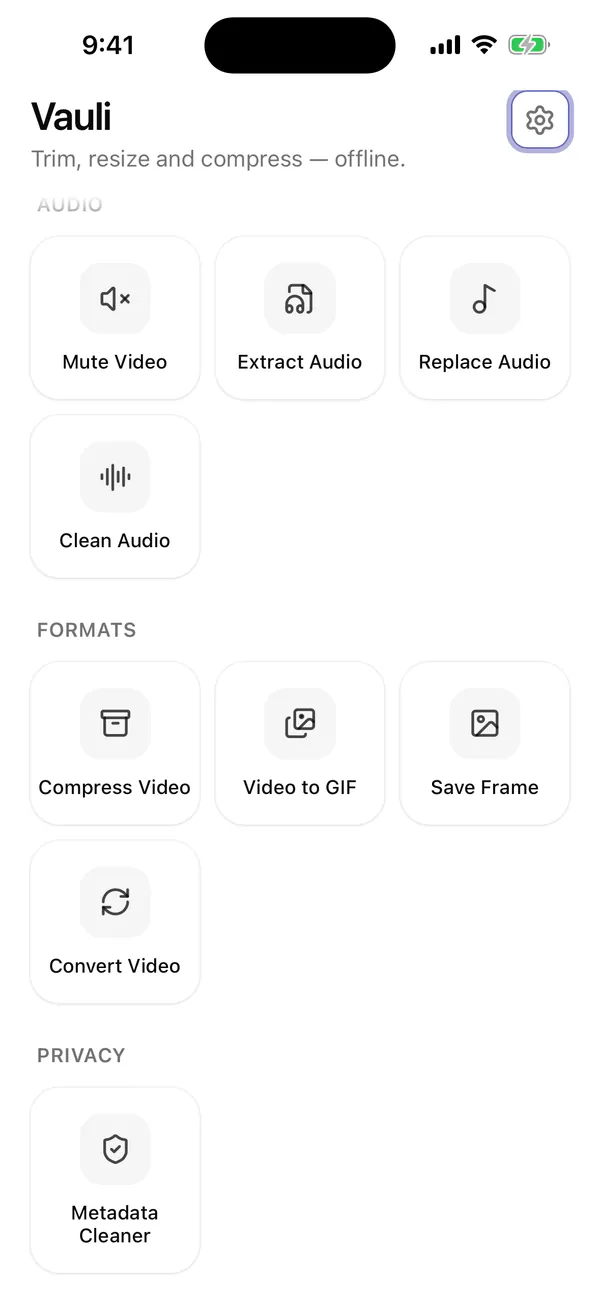
Compress Video is in the Formats group. -
Choose the video
Tap Choose videos (“Select one or more from Photos · MP4 or MOV”) and pick the video, or tap Files to pick it from the Files app. The picker says “Select up to 20 videos.” Vauli takes MP4 and MOV videos and doesn’t ask for access to your whole photo library.
-
Set the quality or a target size
Under Quality, pick High, Balanced, or Small. To aim for a size instead, switch File size from Auto to Target size, then tap Discord (9 MB target), Email (7 MB target) or WhatsApp (15 MB target), or type your own size in Custom size (5 to 2,000 MB). Vauli labels the buttons “Suggested sizes, not service limits.”, since limits vary by account and how you send. These are targets, not sizes the export is sure to fit: Vauli aims for the target and checks the size after export, and a longer or more detailed clip can still land above it (in our test, the Email 7 MB target gave a 15.0 MB file). A target size overrides the Quality choice: Vauli works out the bitrate from the target and the video’s length.
Pick a target a little below your real limit. Vauli’s note reads “Aim for this size. The result is checked after export.” Above the buttons, Vauli shows your free exports left, for example “3 free exports remaining, then unlimited with Vauli Pro. Saved results stay unlocked.”
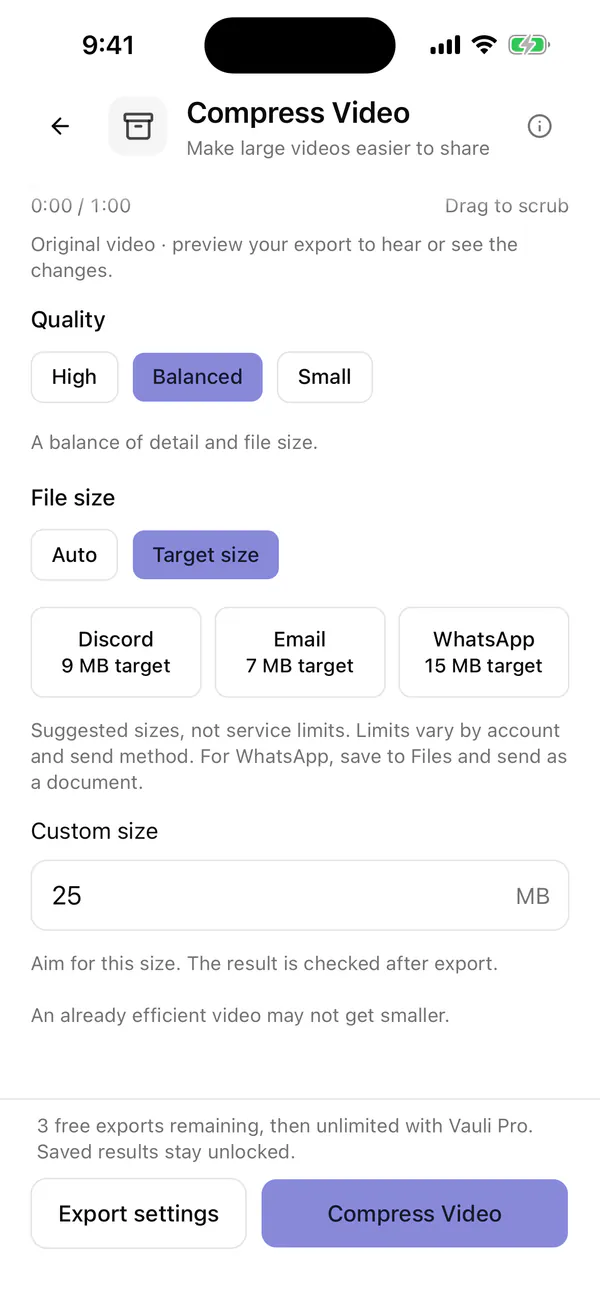
Switch File size to Target size, then tap a suggested size or type your own. -
Check the export settings
Tap Export settings next to the export button. Maximum resolution starts at 1080p, so a 4K video comes out as 1080p unless you change it. Pick 720p or 480p for a smaller file, or if a low target looks blocky; pick Original to keep the full resolution. Frame rate starts at Original (or 24, 30, or 60 fps), and Color at “SDR · most compatible”. For an HDR video, “Keep HDR” saves it as HEVC, which plays in fewer places. Tap Review export for a card starting with “About” that estimates the size and length.
-
Preview a few seconds
In the same panel, below “Review export” and “Sample starts at (seconds)”, tap Preview up to 5 seconds. The screen title is Preview your edit, with a “0:05 processed sample” line. Watch for blockiness or smeared detail, and tap Compare original / processed to see them side by side. The sample’s size “does not predict the full export size”, so judge the picture, not the number. Previews are free, so try other settings until it looks right.
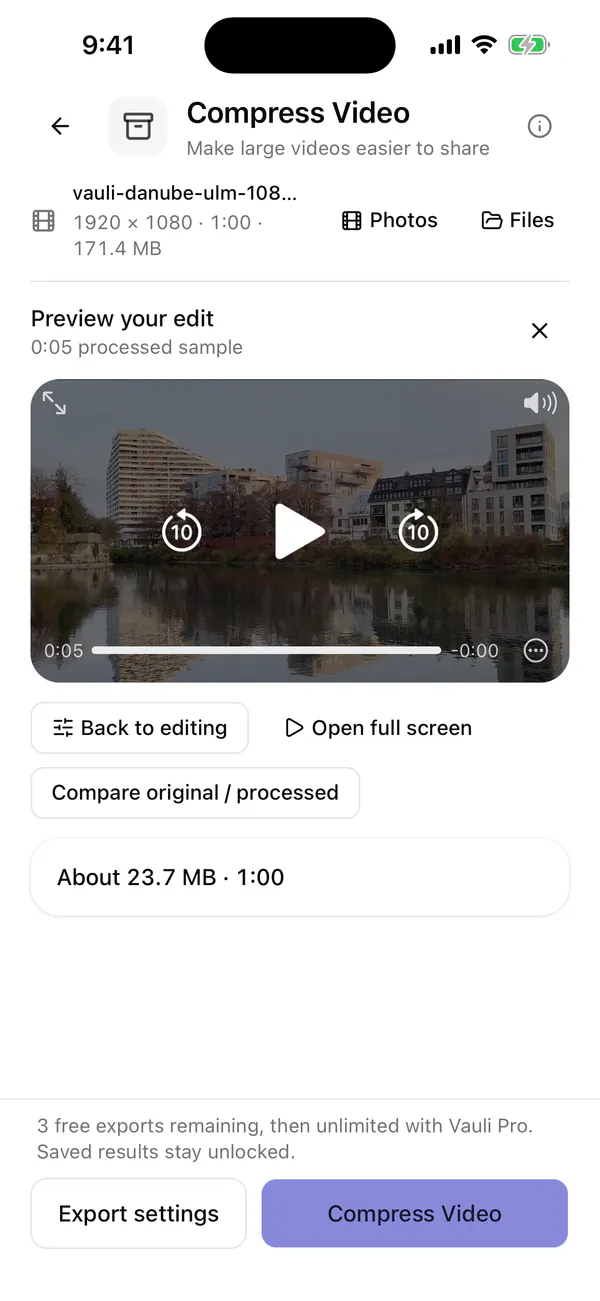
Check a 5-second sample before the full export. -
Tap Compress Video
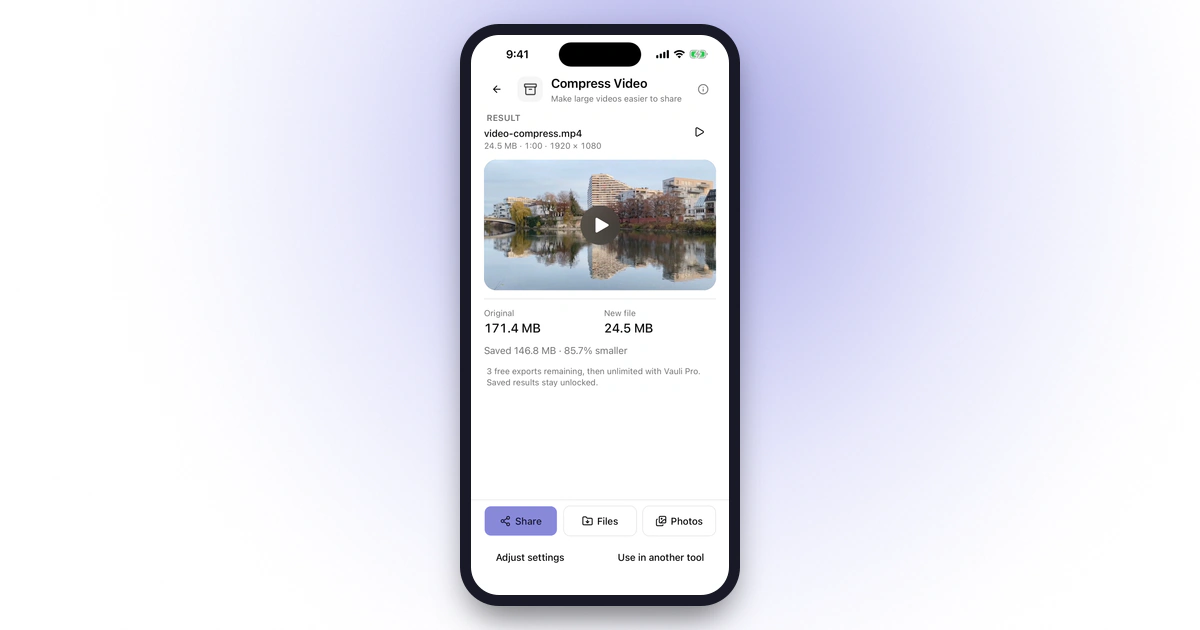
Tap Compress Video at the bottom of the screen. If Vauli shows a warning, read it; the button then reads Continue export. When the export finishes, the result shows the Original and New file sizes and a Saved line. With our Simulator sample clip and a 25 MB custom target, Original was 171.4 MB, New file was 24.5 MB, and the line read “Saved 146.8 MB · 85.7% smaller”.
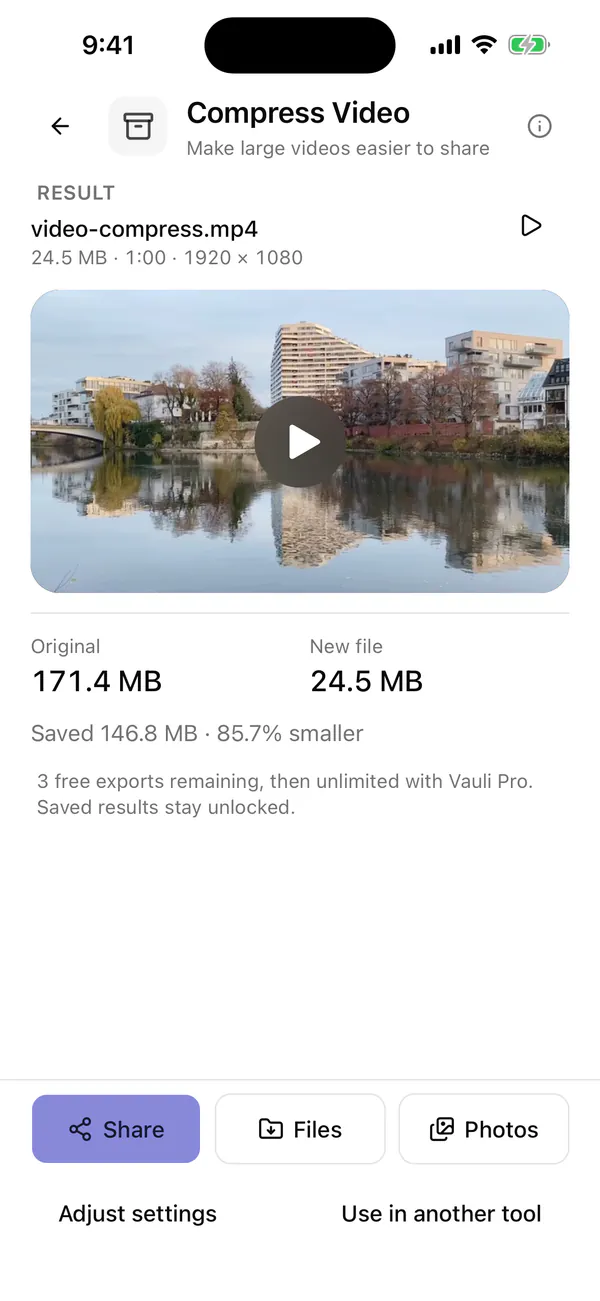
Original, New file, and how much space you saved.
What we measured. We ran Vauli on a 171.4 MB, 60-second 1080p sample clip in the iPhone Simulator, not on a real iPhone, so your sizes will differ with your video and phone.
| Setting | New file | Smaller by |
|---|---|---|
| Quality High | 123.1 MB | 28% |
| Quality Balanced | 62.4 MB | 64% |
| Quality Small | 32.0 MB | 81% |
| Custom size, 25 MB target | 24.5 MB (target met) | 85.7% |
| Email, 7 MB target | 15.0 MB (above target) | 91% |
The 25 MB target was met. The Email target wasn’t: a full minute of 1080p came out at 15.0 MB, and Vauli warned that the result was above the target. To get closer, lower the Maximum resolution, trim the clip, or raise the target.
-
Save or send the smaller copy
Tap Share to send it straight to Mail, Messages, or another app, or Files or Photos to save a copy. The first time you save to Photos, iOS may ask whether Vauli can add to your library; Vauli’s reason reads “Save your exported videos to your photo library.” After saving, Vauli says “Saved to Photos.” Your original video isn’t changed.
If it doesn’t look right, tap Adjust settings and export again. To cut it shorter as well, tap Use in another tool and pick Trim & Cut.
Editing and previews are free, and you get 3 free exports. Saving or sharing a result you’ve already saved is free (“This result is unlocked. Save or share it again for free.”), and a save that’s cancelled or interrupted doesn’t count. After that, exporting new results needs Vauli Pro.
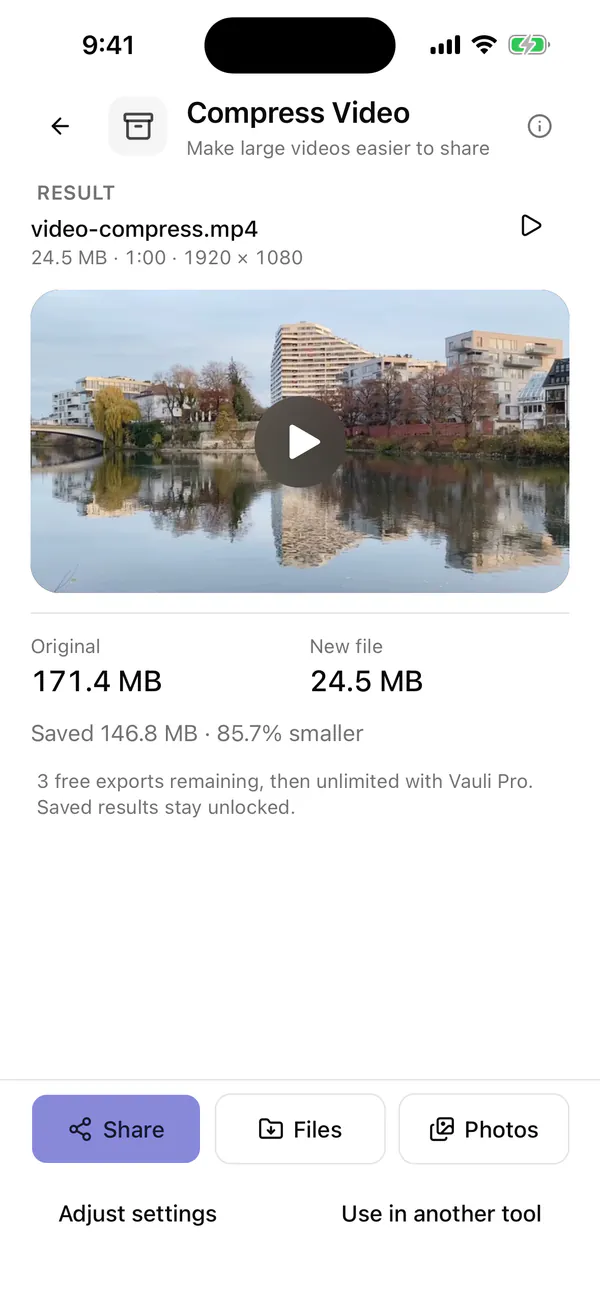
Share it, or save the copy to Files or Photos.
Changing the speed first makes a clip shorter, and so smaller: see how to speed up or slow down a video on iPhone. For a clip that plays backwards, see how to reverse a video on iPhone.
Send it as a link instead
If you only need someone to receive the video, a smaller file may not be the answer. In Mail on iPhone, Mail Drop sends large attachments through iCloud: Apple says attachments can be up to 5 GB, and recipients have 30 days to download them. The video arrives in full quality, with no compression step.
Shoot smaller videos from now on
These settings only affect new recordings, not videos you’ve already shot.
- Lower the resolution or frame rate. Go to Settings > Camera > Record Video and choose a lower format. Apple notes that “faster frame rates and higher resolutions result in larger video files.”
- Keep High Efficiency on. In Settings > Camera > Formats, High Efficiency records HEVC video, which Apple calls “space-saving”. Most Compatible records H.264, which takes more space.
- Turn off HDR Video if you don’t need it. Apple’s compress page lists it, with a lower resolution and High Efficiency, as the way to get “consistently smaller video files”. It’s in Settings > Camera > Record Video.
Why the file is still too big
- The video is long. Apple’s own advice for a file that’s still too large is to trim it. In Photos, open the video, tap Edit, and, in Apple’s words, “drag either end of the frame viewer below the video to adjust the start and stop times”, then tap Done. Or use Vauli’s Trim & Cut.
- Vauli says “This result is above your target size.” If the first export comes out over your target, Vauli automatically re-encodes it once at a lower bitrate (you’ll see “Adjusting size”). If it’s still over, it keeps the file and suggests: “Try a smaller resolution or increase the target.” This happens most with the small suggested targets on a long clip: in our test, a 60-second 1080p clip with the Email 7 MB target came out at 15.0 MB. Lower the Maximum resolution in Export settings, trim the video, or increase the target, and export again.
- Vauli says “This target is too small.” For a long video, a very small target leaves too little data for the picture, so Vauli refuses it: “Increase the target size or trim the video.”
- The new file isn’t smaller at all. Vauli says so (“Same size as the original.”, or how much larger it is, with “Try Small quality or a lower resolution.”). Its own note warns that “an already efficient video may not get smaller.”
- Vauli says there isn’t enough space. To export, it needs more free storage than 100 MB or twice the estimated output size plus 50 MB, whichever is larger. Opening a video needs its size plus 50 MB.
- The export stopped because the iPhone got hot. Vauli stops exporting when the phone is too hot (“The device needs to cool down…”). Let it cool, then export again.
What compression can’t do
- Keep every detail. All three methods re-encode the picture. Lost detail can’t be brought back from the small copy, so keep the original until you’re sure.
- Handle anything in Vauli over 2 hours or 10 GB. Vauli opens MP4 and MOV videos up to two hours long and 10 GB in size, for free and Pro users alike.
- Run on iPad or Mac. Vauli is an iPhone app; there’s no iPad or Mac version.
More about the tool: Vauli’s video compressor.
Sources
- [1]Apple Support: Compress a video on iPhone
- [2]Apple Support: Mail Drop limits
- [3]Apple Support: Record a video with your iPhone camera
- [4]Apple Support: Using HEIF or HEVC media on Apple devices
- [5]Apple iPhone User Guide: Trim video length, adjust speed, and edit audio on iPhone
- [6]CleverFiles: I Tested 3 Ways to Compress iPhone Videos
FAQ
Can I compress a video on iPhone without a third-party app?
Yes. Photos can trim a video but has no compress option, so Apple's own method is iMovie, a free Apple app: export the video at 720p, 540p, or 360p. A shortcut built with the Shortcuts app's Encode Media action also works without installing anything.
Does compressing a video reduce the quality?
Yes, some. Every method on this page re-encodes the video, and the smaller the file, the more detail is lost. Keep the original, and preview the result before you send it.
How do I compress a video on iPhone to send by email?
Export it from iMovie at 540p or 360p, or set a target size in Vauli a little below your email provider's real attachment limit. Vauli's Email button is a 7 MB target, not a promise: Vauli aims for it and checks the size after export, and a long clip can still come out bigger (our 60-second 1080p test clip came out at 15.0 MB). Check the new file's size before you attach it. If it's still too big, send it with Mail Drop, which handles attachments up to 5 GB, or share a link instead.
Where does the compressed video go?
iMovie and a Shortcuts shortcut save a new copy to your photo library or the Files app, and the original stays where it was. Vauli also keeps the original and lets you save the smaller copy to Photos or Files, or share it.
Does Vauli upload my video to compress it?
No. Vauli compresses the video on your iPhone, and your videos never go to the cloud. Its Settings screen says: "We collect usage and diagnostic data. Your media stays on your device."