
How to Reverse a Video on iPhone
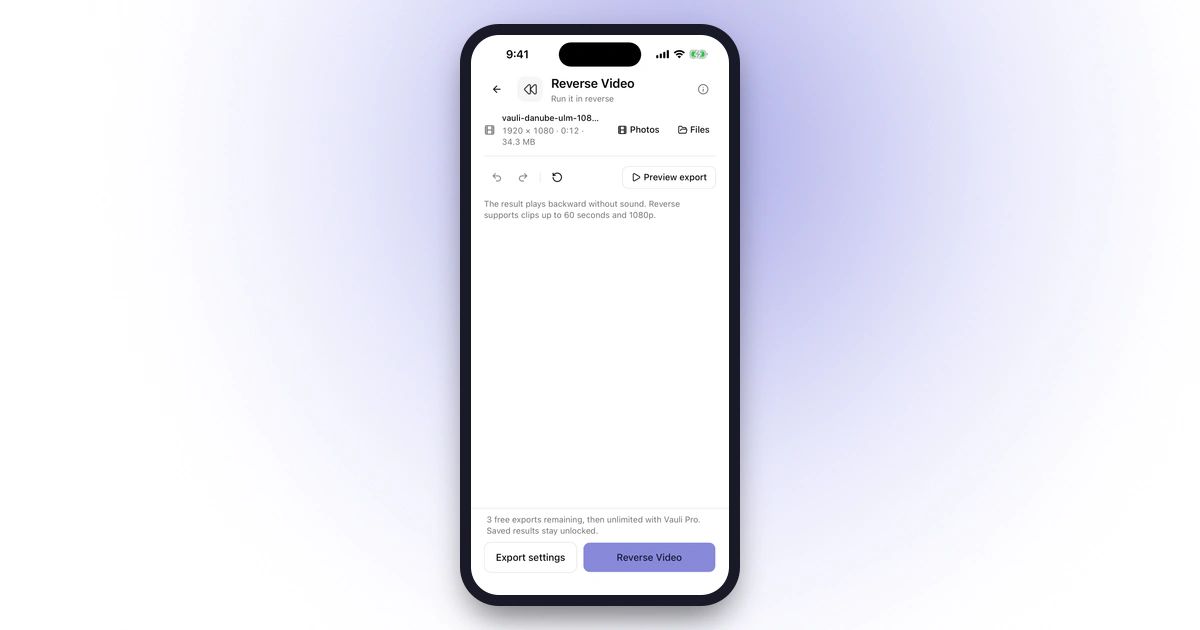
There’s no built-in way to reverse a regular video on iPhone: Photos has no reverse option, and iMovie can play clips backward only on a Mac. For a Live Photo, Photos’ Bounce effect plays it forward and then backward. To reverse any clip up to 60 seconds, use Vauli’s Reverse Video, which saves a backward copy without sound.
The Photos and iMovie details below follow Apple’s own guides, so names can shift a little between iOS versions. The Vauli steps follow the current version of the app. The screenshots are from the iPhone Simulator with a sample clip.
Which option fits
| You have | You want | Use |
|---|---|---|
| A Live Photo | A short forward-and-back loop | Photos’ Bounce effect (free, built in) |
| A Mac with iMovie | To reverse a clip with its full set of editing tools | iMovie for Mac (free from Apple) |
| Any MP4 or MOV video up to 60 seconds, on your iPhone | A copy that plays backwards | Vauli Reverse Video |
| A longer video | Part of it backwards | Trim it to 60 seconds or less first, then Vauli Reverse Video |
Can Photos or iMovie reverse a video?
No, not on iPhone.
- Photos: Apple’s guide to editing videos in Photos covers trimming, playback speed for high-frame-rate videos, the slow part of Slo-mo videos and Audio Mix. There’s no reverse. When we opened Edit on two sample clips in the iPhone Simulator (iOS 26.0.1), Photos showed the trim rail, playback, audio and More, plus Video, Adjust, Filters and Crop, and no reverse option.
- iMovie on iPhone: Apple’s iPhone guide lets you change clip speed and freeze a frame, but it doesn’t describe a reverse option, and How-To Geek says “Apple Photos and iMovie can’t reverse videos”.
- iMovie on a Mac: it can. Apple’s steps: select the clip, click the Speed button, then “Select the Reverse checkbox.” If you have a Mac, AirDrop the video over, reverse it there and send it back.
Websites that reverse video work on a copy you upload to them, so the video leaves your iPhone.
Short clip? Use a Live Photo’s Bounce effect (free)
This only works on Live Photos, which are a few seconds long. Bounce isn’t a reversed copy: it plays forward, then backward. These steps follow Apple’s iPhone User Guide.
-
Open the Live Photo
Open the Photos app and open a Live Photo.
-
Choose Bounce
Tap Live in the top-left corner, then tap Bounce. Apple says Bounce “rewinds the action backward and forward.”
-
Save it as a video, if you need a file
Apple says you can turn a Live Photo into a video: tap the button in the top-right corner, then tap Save as Video. Apple’s page doesn’t say whether the saved video keeps the Bounce effect, so play it back before you share it.
Reverse any video with Vauli
Vauli is a video toolbox for iPhone. Its Reverse Video tool makes a new copy of a clip that plays backward, from the last frame to the first. It runs on your iPhone, so your videos never go to the cloud. In Vauli’s own Settings: “We collect usage and diagnostic data. Your media stays on your device.”
Reverse Video works on clips up to 60 seconds and up to 1080p. A portrait 1080 × 1920 clip fits too. The copy has no sound.
-
Open Reverse Video
In Vauli, tap Reverse Video (“Run it in reverse”) in the Edit group.
-
Choose your video
Tap Choose videos and pick the video, or tap Files to pick it from the Files app. You can pick up to 20 videos at once: with two or more, Vauli opens Batch and reverses each one separately. Vauli takes MP4 and MOV videos and doesn’t ask to see your whole photo library. You can also share a video to Vauli from Photos: tap Share, then Vauli. The sheet closes and the video is sent to Vauli; open Vauli to continue. Choosing the video inside Vauli is the simpler way.
-
Read the note, then check the clip fits
There’s nothing to set for Reverse Video: no speed, range or sound option. Vauli shows the note “The result plays backward without sound. Reverse supports clips up to 60 seconds and 1080p.” If the clip is longer or larger, Vauli stops with “Reverse supports clips up to 60 seconds and 1080p. Trim or resize the video first.” See “If the video is too long or too large” below.
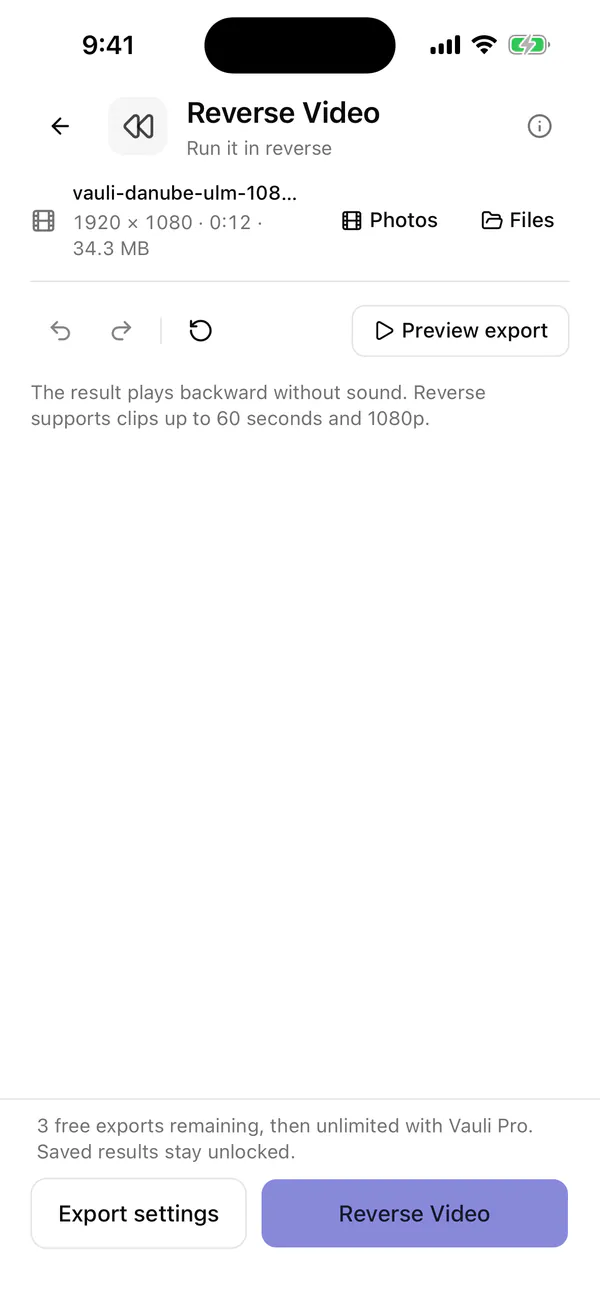
Reverse Video has no settings. The note says the copy has no sound. -
Export the reversed copy
Tap Reverse Video at the bottom of the screen. The first tap doesn’t export yet. Vauli shows a card starting with “About” with the estimated size and length, the warning “Reverse Video exports without sound. Trim long footage first for faster processing.” and “Review these details, then tap Continue export.” Tap Continue export to make the reversed copy. Treat the size as a rough estimate: it counts sound that the reversed copy won’t have.
Above the buttons, Vauli shows two lines about free exports, for example “3 free exports remaining, then unlimited with Vauli Pro.” and then “Saved results stay unlocked.”
Export settings, next to the button, has Maximum resolution (1080p to start with), Frame rate (the reversed copy plays at up to 60 fps either way) and Color. Reverse always saves a standard-range (SDR) H.264 video, so an HDR clip comes out in SDR whatever you pick. The preview screen is titled Preview your edit, with 0:05 processed sample underneath. Tap Preview up to 5 seconds (or Preview export on the toolbar) to watch a 5-second sample play backwards before you export.
-
Save or share the reversed video
The result screen shows RESULT, the file name and a line with its size, length and dimensions. Tap Photos to save the video to your library, Files to save it to the Files app, or Share to send it. After saving to Photos, Vauli shows “This result is unlocked. Save or share it again for free.” above “Saved to Photos.” To keep working on the reversed clip, tap Use in another tool.
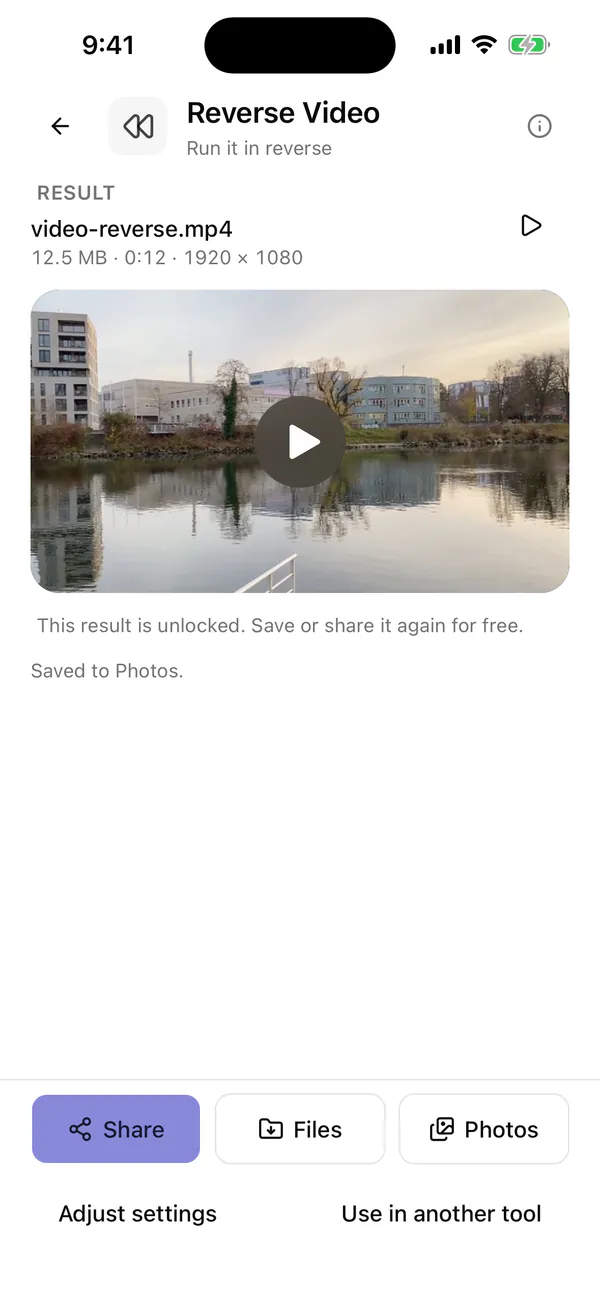
Save the reversed copy to Photos or Files, or share it.
Editing in Vauli is free, and you get 3 free exports. After that, exporting needs Vauli Pro; results you’ve already saved stay unlocked. Your original video isn’t changed.
If the video is too long or too large
Reverse Video takes clips up to 60 seconds and up to 1080p.
- Longer than 60 seconds: cut it down first with Vauli’s Trim & Cut (“Keep just the parts you want”), then tap Use in another tool on the result and pick Reverse Video. Vauli’s own warning also suggests trimming long footage, because reversing is faster on a shorter clip.
- Larger than 1080p, such as 4K: the limit applies to the copy Vauli makes, after Maximum resolution in Export settings. At the default 1080p, a regular widescreen or portrait 4K clip comes out at 1920 × 1080 (or 1080 × 1920) and works as it is. If you set Maximum resolution to Original or 4K, you get the error. A 4K clip in the 4:3 shape is too large even at 1080p, so set Maximum resolution to 720p.
Make a forward-then-backward clip
For a boomerang-style clip from a regular video, join the original and the reversed copy:
-
Save the reversed copy
Reverse the clip as above and save it to Photos.
-
Merge the original and the reversed copy
Open Merge Videos (“Join your clips in the right order”) and choose both videos: pick the original first, then the reversed copy. The clips start in the order you picked them. To change it, use the up and down arrows next to each clip (“Tap a clip to trim. Use the arrows to reorder.”). Merge Videos takes 2 to 20 clips. The original part keeps its sound, and the reversed part stays silent.
-
Repeat it, if you want a loop
On the merged result, tap Use in another tool and pick Loop Video (“Repeat the moment”). Loop Video repeats a section of the clip 2, 3, 4, 5 or 10 times in one file. The section starts as the first 5 seconds, so drag it out to the full length of the clip to loop the whole back-and-forth.
Each result you save uses one of your free exports.
What happens to the sound
Vauli’s Reverse Video always removes the sound. There’s no option to keep it or play it backwards, and Vauli says so before you export: “The result plays backward without sound.” The original video keeps its sound.
If you want sound on the reversed clip, add it afterwards: tap Use in another tool on the result and pick Replace Audio (“Choose the soundtrack”), then tap Choose local soundtrack and pick an audio file from the Files app. Vauli has no music library, so the track has to be your own. Use in another tool lists many Vauli tools on the same result (Compress Video, Trim & Cut, Crop & Resize, Merge Videos, Mute Video, Change Speed, Video to GIF, Save Frame, Replace Audio, Split Video, Loop Video, Blur & Pixelate, Reverse Video, Add Text / Logo, Adjust Video, Freeze Frame, Convert Video and Metadata Cleaner). Extract Audio and Clean Audio are not in that list.
Reverse and change the speed
To play a clip backwards in slow motion or fast forward, reverse it first, then use Change Speed on the result. Speed changes are covered in how to speed up or slow down a video on iPhone.
Limits
- Photos and iMovie on iPhone can’t reverse a video. Bounce works only on Live Photos, and it plays forward and back rather than reversing.
- Vauli reverses clips up to 60 seconds and up to 1080p, and the reversed copy plays at up to 60 frames per second. For longer clips, trim first. A 4:3 4K clip needs Maximum resolution set to 720p. Vauli opens MP4 and MOV videos (which videos Vauli can open).
- No sound, no HDR. The reversed copy is always silent and always saved in standard range (SDR).
- Whole clip only. Reverse Video reverses everything you give it; to reverse one part, trim that part out first.
- Re-encoded picture. Vauli builds the reversed clip as a new H.264 MP4 and leaves the original alone. Like every Vauli export, the new file doesn’t keep location, date or other metadata.
- Vauli is iPhone only (iOS 15 or later), and it has no Shortcuts actions, so reversing can’t be automated.
All of Vauli’s tools are on Vauli’s home page.
Sources
- [1]Apple iPhone User Guide: Edit Live Photos on iPhone (Bounce, Save as Video)
- [2]Apple iPhone User Guide: Trim video length, adjust speed, and edit audio on iPhone
- [3]Apple iMovie User Guide for Mac: Change clip speed (Play a clip backward)
- [4]Apple iMovie User Guide: Adjust video speed in iMovie on iPhone
- [5]How-To Geek: How to Reverse a Video on an iPhone or iPad
FAQ
Can you reverse a video on iPhone without an app?
No. Photos has no reverse option and iMovie on iPhone can't reverse clips. The closest built-in effect is Bounce for Live Photos, which Apple says "rewinds the action backward and forward". For a regular video, you need an app such as Vauli.
Can iMovie on iPhone reverse a video?
No. How-To Geek reports that iMovie on iPhone can't reverse videos. iMovie on a Mac can: Apple's Mac guide says to click Speed and select the Reverse checkbox.
Does a reversed video keep the sound?
Not in Vauli. Vauli's Reverse Video always removes the sound, and the app says so before you export: "The result plays backward without sound." You can add your own soundtrack afterwards with Vauli's Replace Audio.
How do I make a boomerang from a normal video?
Reverse a copy of the clip, then join the original and the reversed copy with Vauli's Merge Videos, original first. To repeat the back-and-forth, run the merged clip through Loop Video.
Does reversing a video lose quality?
Some. Vauli rebuilds the clip frame by frame as a new H.264 MP4, so the picture is re-encoded, and Reverse works on clips up to 1080p. Your original video isn't changed.