
How to Speed Up or Slow Down a Video on iPhone
Photos has no speed control for regular videos; it only lets you choose which part of a Slo-mo video plays slowly. For any video, iMovie (free from Apple) speeds clips up to 2× or slows them to one-eighth. To go faster than 2×, Vauli’s Change Speed runs from 0.25× to 4× on your iPhone.
The Slo-mo, iMovie and Camera steps below follow Apple’s own support pages, so button names can shift a little between iOS versions. The Vauli steps follow the current version of the app. The screenshots are from the iPhone Simulator with a sample clip.
Which option fits
| You have | You want | Use |
|---|---|---|
| A video shot in Slo-mo mode | Choose where the slow part starts and ends | Photos (free, built in) |
| Any video | Up to 2× faster or down to one-eighth speed, or different speeds in parts of one clip | iMovie (free from Apple) |
| Any MP4 or MOV video | Faster than 2× (up to 4×), or a one-screen speed change without building a project | Vauli Change Speed |
| A moment you haven’t filmed yet | Smooth slow motion or a time-lapse | Camera’s Slo-mo or Time-lapse mode |
Change the slow part of a Slo-mo video in Photos (free, Slo-mo videos only)
Photos has no speed control for regular videos. When we tapped Edit on a 60 fps and a 29.97 fps clip in the iPhone Simulator, Photos showed the trim rail, playback, audio and More, plus Video, Adjust, Filters and Crop, and no speed option. What Photos can do is change which part of a video shot in Slo-mo mode plays slowly. These steps follow Apple’s iPhone User Guide.
-
Open the Slo-mo video and tap Edit
Open the Photos app, open a video you shot in Camera’s Slo-mo mode, then tap the Edit button.
-
Set the slow section
In Apple’s words, “drag the black vertical bars beneath the frame viewer to set where the video is played in slow motion.” Apple says the rest plays “at regular speed”.
-
Tap Done
Tap Done. To undo the change later, open the video, tap Edit, tap Revert, then Revert to Original.
Speed up or slow down any video in iMovie (free, up to 2×)
iMovie is Apple’s free video editor; get it from the App Store if it isn’t on your iPhone. Apple’s iMovie guide gives a maximum of “twice the original speed” and a minimum of “one-eighth of the original speed”. Apple states those limits on its page for Magic Movie and storyboard projects; its page for Movie projects doesn’t give a number.
-
Create a Movie project with your video
Open iMovie, tap Start New Project, then tap Movie. Tap the video (tap Media to browse albums), then tap Create Movie.
-
Tap the clip, then Speed
Tap the clip in the timeline to show the inspector at the bottom, then tap the Speed button. A yellow bar appears under the clip.
-
Drag the slider
Drag the slider right to speed the clip up, or left to slow it down. iMovie shows the speed under the clip: “2x means twice the normal speed, 1/2x means half the normal speed”. To give parts of one clip different speeds, drag the yellow range handles or tap Add, then set each range. Reset puts the whole clip back to normal speed.
-
Save the video
Tap Done, tap the Share button, then Save or Share Video, and choose Save Video to put it in Photos.
iMovie keeps voices at their normal pitch by default. If you want the chipmunk or slow-motion voice effect, tap the Project Settings button and turn on Speed changes pitch.
Change the speed from 0.25× to 4× with Vauli
Vauli is a video toolbox for iPhone. Its Change Speed tool works on any MP4 or MOV video, normal frame rate included, and goes past iMovie’s 2× limit. Change Speed runs on your iPhone: your videos never go to the cloud. In Vauli’s own Settings: “We collect usage and diagnostic data. Your media stays on your device.”
-
Open Change Speed
In Vauli, tap Change Speed (“Set the pace”) in the Edit group.
-
Choose your video
Tap Choose videos (“Select one or more from Photos · MP4 or MOV”) and pick the video, or tap Files to pick it from the Files app. The picker says “Select up to 20 videos.” Vauli takes MP4 and MOV videos and doesn’t ask to see your whole photo library. Once loaded, Vauli shows the video’s dimensions, length and file size, for example “1920 × 1080 · 0:12 · 34.3 MB”. You can also send a video from the share sheet in Photos and other apps: tap Share, then Vauli. The sheet closes, and the video is sent to Vauli; open Vauli to continue. Choosing the video inside Vauli is the simpler way.
-
Set the speed
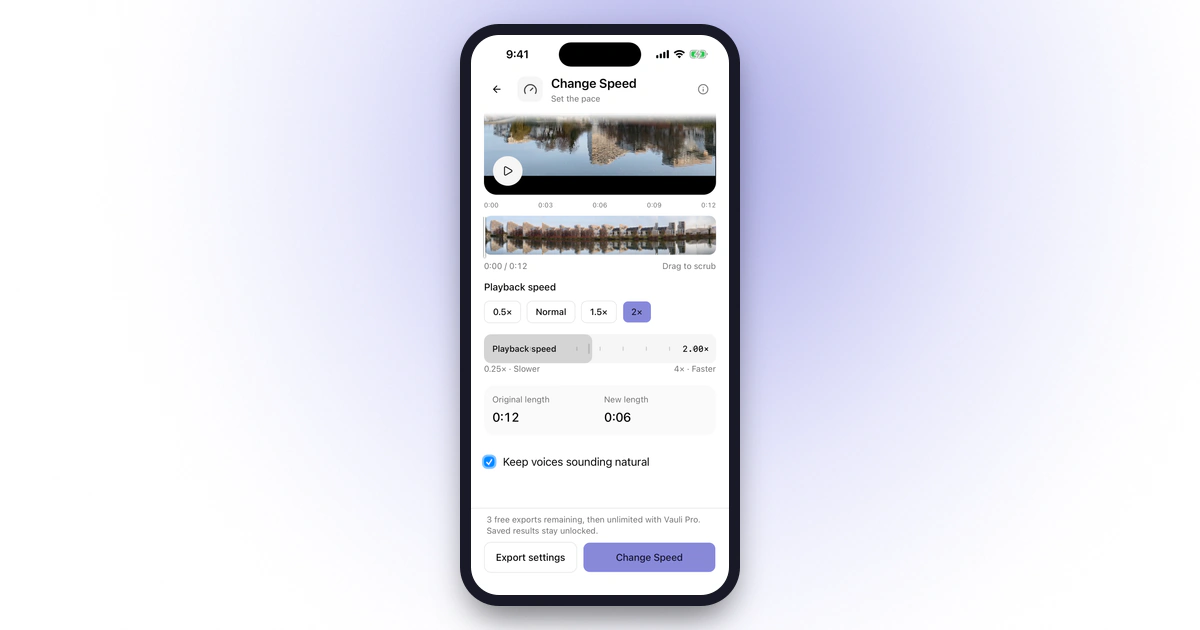
Under Playback speed, tap a preset (0.5×, Normal, 1.5× or 2×), or drag the slider anywhere from 0.25× · Slower to 4× · Faster in steps of 0.25×. The chosen speed shows on the slider, for example “2.00×”. In the card below the slider, Original length and New length show how long the video is now and how long it will be: a 0:12 clip at 2× becomes 0:06. The new length has to stay under two hours. The speed applies to the whole clip; there’s no way to speed up just one part.
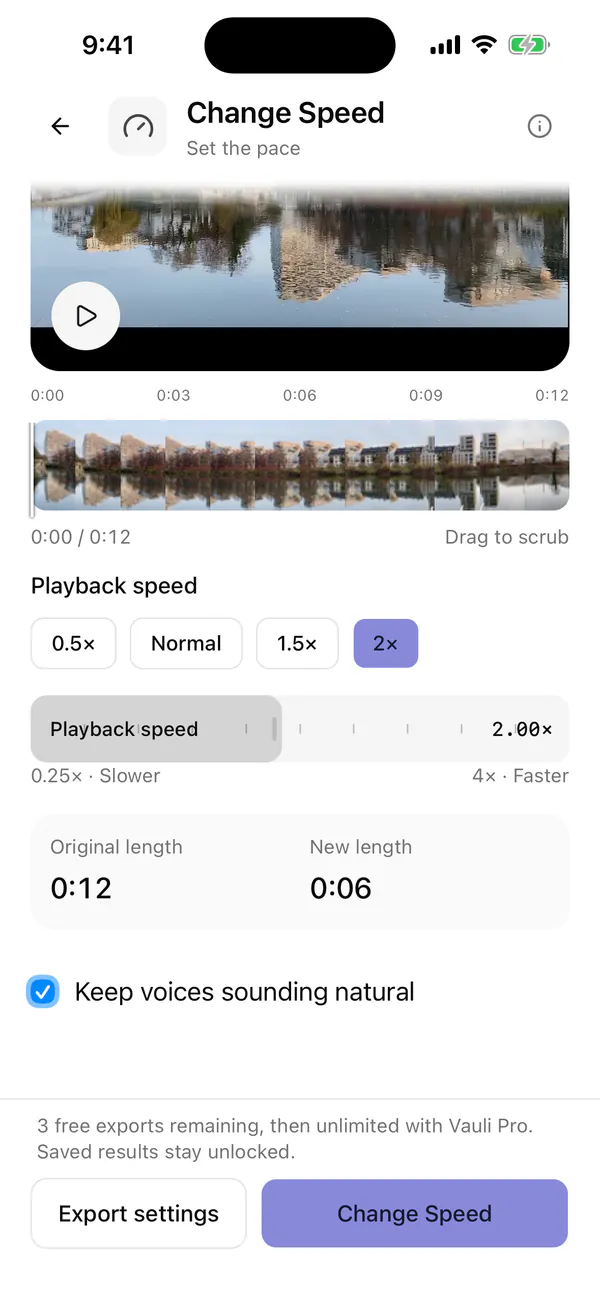
Change Speed in Vauli: pick a preset or drag the slider. -
Keep voices sounding natural
The sound stays in and speeds up or slows down with the picture. If the video has sound, Vauli shows Keep voices sounding natural, and it’s on to start with. Leave it on to keep voices at their normal pitch, so a sped-up voice doesn’t go squeaky and a slowed one doesn’t go deep. Turn it off if you want the pitch to rise and fall with the speed. The preview uses the same setting, so you can hear the difference before you export.
-
Check Export settings, then export
Tap Export settings, next to the export button. A new project exports at 1080p, so for a 4K video set Maximum resolution to Original or 4K. Frame rate stays at Original and Color at “SDR · most compatible” unless you change them. Below those are a Review export button, a Sample starts at (seconds) field and Preview up to 5 seconds. Tap Review export to see an estimated file size and length before you export; for the 12-second test clip at 2× it showed “About 6.1 MB · 0:06”. To hear a short test first, set where the sample starts and tap Preview up to 5 seconds. Then close the panel and tap the export button, which reads Change Speed. Above the buttons, Vauli shows how many free exports you have left, for example “3 free exports remaining, then unlimited with Vauli Pro. Saved results stay unlocked.” For an HDR video, Vauli shows “HDR is converted to SDR for this export.” and the button reads Continue export instead. To keep HDR, set Color to Keep HDR.
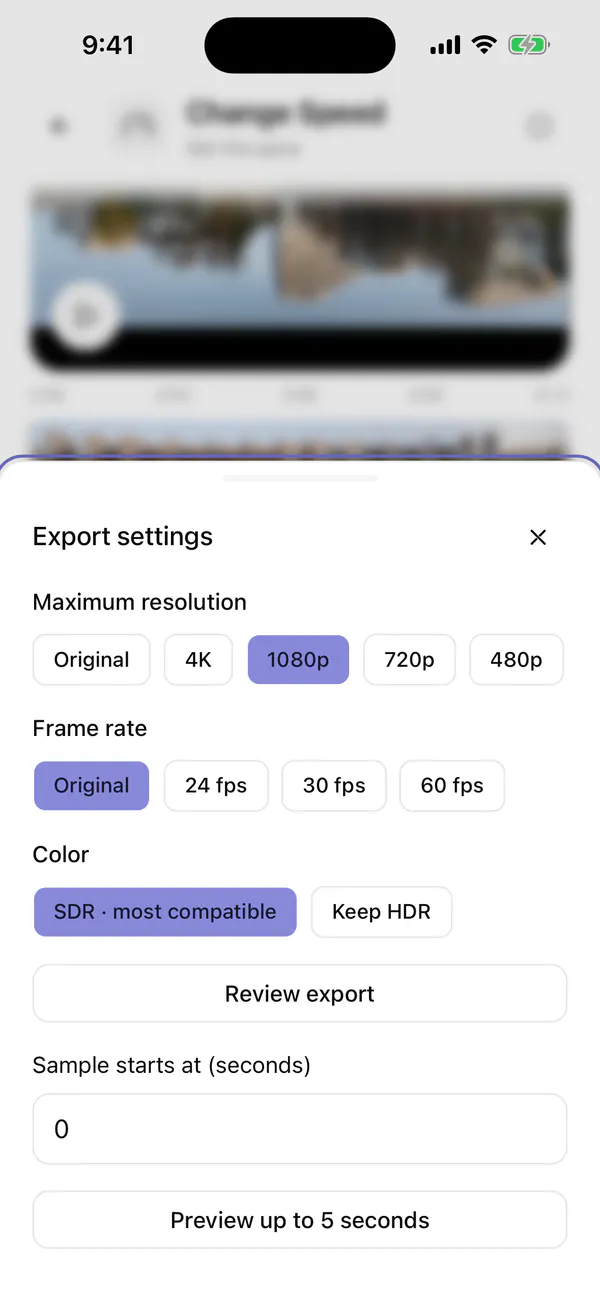
Export settings sit next to the export button. New projects export at 1080p.
-
Save or share the result
The result screen shows the file name and a line with its size, length and dimensions. Tap Photos to save the video to your library, Files to save it to the Files app, or Share to send it. After saving to Photos, Vauli says “Saved to Photos.” and “This result is unlocked. Save or share it again for free.” To try a different speed, tap Adjust settings. To keep working on the same clip, tap Use in another tool, for example to trim it or make it smaller.
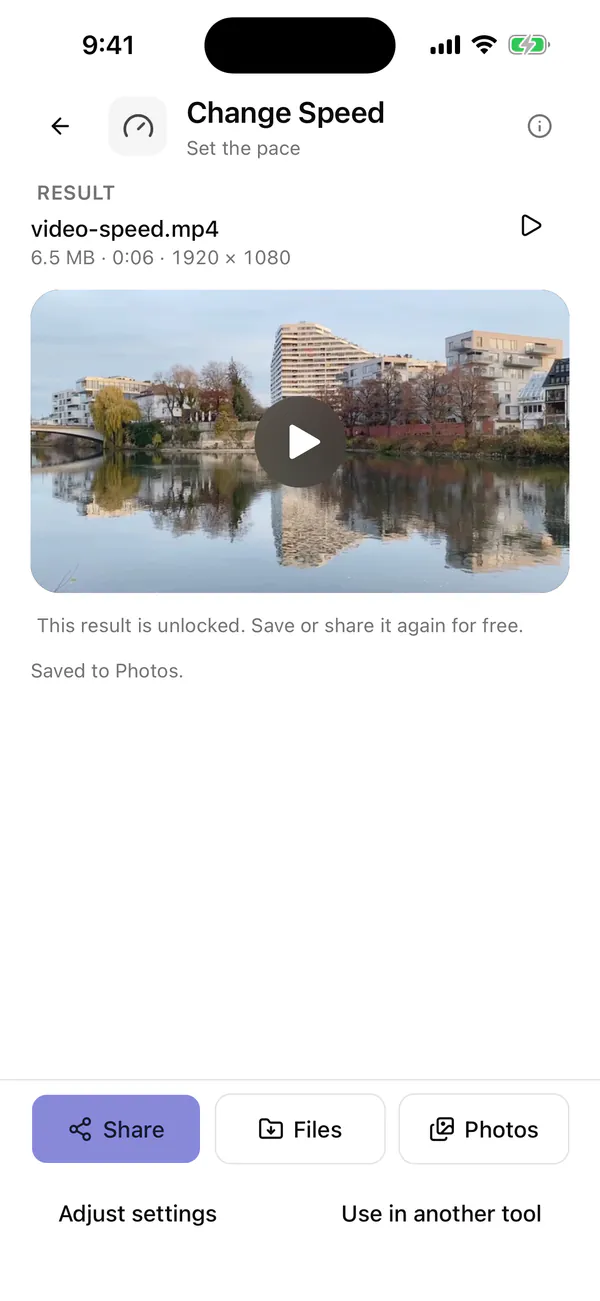
The result line shows size, length and dimensions.
To give several videos the same speed, Change Speed also works in Vauli’s Batch export queue, which can “Apply these settings to all” and exports the videos one at a time.
Editing and previews in Vauli are free, and you get 3 free exports. Each save counts down the line in the editor, for example to “2 free exports remaining, then unlimited with Vauli Pro.”, and Settings > Vauli Pro shows the same count (“2 free exports remaining.”). After that, exporting needs Vauli Pro; results you’ve already saved stay unlocked. Why exports default to 1080p: Vauli support.
Make a normal video slow motion (and why it can look choppy)
A video is a run of still frames. A normal iPhone video has about 30 of them per second. Play it at half speed and each second on screen has only 15 new frames to show; at 0.25× it has about 7 or 8. Fast movement starts to stutter, whichever app you use. A Slo-mo video doesn’t have that problem: Apple says Slo-mo records at “1080 HD at 240 fps” from the back camera by default, so there are eight times as many frames to spread out.
So for footage you’ve already shot, iMovie or Vauli can slow it down, and it will look smoothest on slow, steady movement. Vauli holds each existing frame longer; it doesn’t blend frames or invent new ones. It says so on screen when you pick a speed below 1×: “Slowing footage repeats existing frames; it does not create new motion detail.” For the next time:
-
Record in Slo-mo
Open Camera, select Slo-mo mode, and tap the Record button. Apple says Slo-mo records at 240 fps from the back camera by default; depending on your model, you can change that in Settings > Camera > Record Slo-mo. Later, choose the slow part in Photos as above.
-
Or record at 60 fps
In Camera’s Video mode, tap the resolution and frame rate values at the top of the screen and pick 60. If you don’t see it, go to Settings > Camera > Record Video, which lists the formats and frame rates your iPhone supports. More frames per second give iMovie or Vauli more to work with when you slow the clip down later.
Speed up a long scene: Time-lapse
To show something slow happen fast, a sunset or a crowd, record it in Camera’s Time-lapse mode on a stable surface or tripod. The Camera app chooses the speed for you: Macworld reports that a time-lapse captures about two frames per second for the first 10 minutes and fewer after that. Apple’s guide lists no setting for time-lapse speed. If the finished time-lapse is too fast, slow it down in iMovie or Vauli like any other video. Vauli opens a time-lapse like a normal clip. A time-lapse has no sound, so Keep voices sounding natural doesn’t appear.
If the result looks or sounds wrong
- There’s no speed control in Photos. That’s expected: Photos only lets you set the slow part of a Slo-mo video. Use iMovie or Vauli.
- Voices sound like chipmunks or very deep. In iMovie, turn off Speed changes pitch in Project Settings. In Vauli, check that Keep voices sounding natural is on (it’s on by default).
- Slow motion looks jerky. The clip has too few frames for that speed. Try a speed closer to normal, or record in Slo-mo next time.
- The Vauli export is 1080p, but the video was 4K. Set Maximum resolution to Original in Export settings and export again.
- The Vauli button says Continue export. The video is HDR, and the export converts it to SDR. Tap it to go ahead, or set Color to Keep HDR first.
- The sped-up file is still too big to send. Make it smaller with Vauli’s video compressor.
Limits
- Photos has no speed control for regular videos; it only adjusts the slow part of a Slo-mo video.
- iMovie stops at 2× and one-eighth speed.
- Vauli goes from 0.25× to 4×, and the result must be under two hours. It opens MP4 and MOV videos up to two hours long and 10 GB with one video track (which videos Vauli can open). It needs free storage equal to the video’s size plus 50 MB.
- Vauli re-encodes the picture. Change Speed makes a new MP4 file (H.264, or HEVC when you keep HDR) and leaves the original alone. Like every Vauli export, the new file doesn’t keep location, date or other metadata.
- Different speeds in one clip: Vauli’s Change Speed sets one speed for the whole video. For different speeds in parts of one clip, use iMovie’s ranges.
- Vauli is iPhone only (iOS 15 or later), and it has no Shortcuts actions, so a speed change can’t be automated.
- No app can add motion detail the camera never recorded.
Want a short loop instead? Vauli’s GIF maker turns up to 15 seconds of a video into a GIF.
Sources
- [1]Apple iPhone User Guide: Trim video length, adjust speed, and edit audio
- [2]Apple iMovie User Guide: Adjust video speed in iMovie on iPhone
- [3]Apple iMovie User Guide: Edit clips in Magic Movies and storyboard projects (2× and one-eighth limits)
- [4]Apple iMovie User Guide: Create a movie project in iMovie on iPhone
- [5]Apple Support: Compress a video on iPhone (iMovie Share > Save or Share Video)
- [6]Apple iPhone User Guide: Record a video with your iPhone camera (Slo-mo and Time-lapse)
- [7]Apple iPhone User Guide: Change video recording settings (Record Slo-mo frame rates)
- [8]Macworld: How to use time-lapse video on iPhone
FAQ
Can I speed up a video in the Photos app on iPhone?
No. Photos has no speed control for regular videos. For a video shot in Slo-mo mode, Apple says you can change which part plays slowly. To speed a video up for free, use iMovie, which goes up to 2×.
How do I speed up a video more than 2× on iPhone?
Use an app that goes past iMovie's 2× limit. Vauli's Change Speed goes up to 4× faster (and down to 0.25×). It runs on your iPhone, and your videos never go to the cloud.
How do I slow down a video that wasn't filmed in Slo-mo?
Use iMovie (down to one-eighth speed) or Vauli's Change Speed (down to 0.25×). A normal 30 fps clip has fewer frames to stretch, and slowing it repeats existing frames rather than creating new ones, so fast motion can look jerky; for smooth slow motion, record in Camera's Slo-mo mode next time.
Does changing the speed change the voice?
Only if pitch isn't kept. iMovie keeps the pitch by default unless you turn on Speed changes pitch in Project Settings. Vauli's Keep voices sounding natural option is on by default and keeps the pitch; turn it off and the pitch rises and falls with the speed.
Can I slow down a time-lapse on iPhone?
Yes, in iMovie or Vauli, which treat a time-lapse like any other video. The Camera app picks the time-lapse speed for you, and Apple's guide lists no setting to change it before you record.